Putting a web shortcut on the Mac desktop
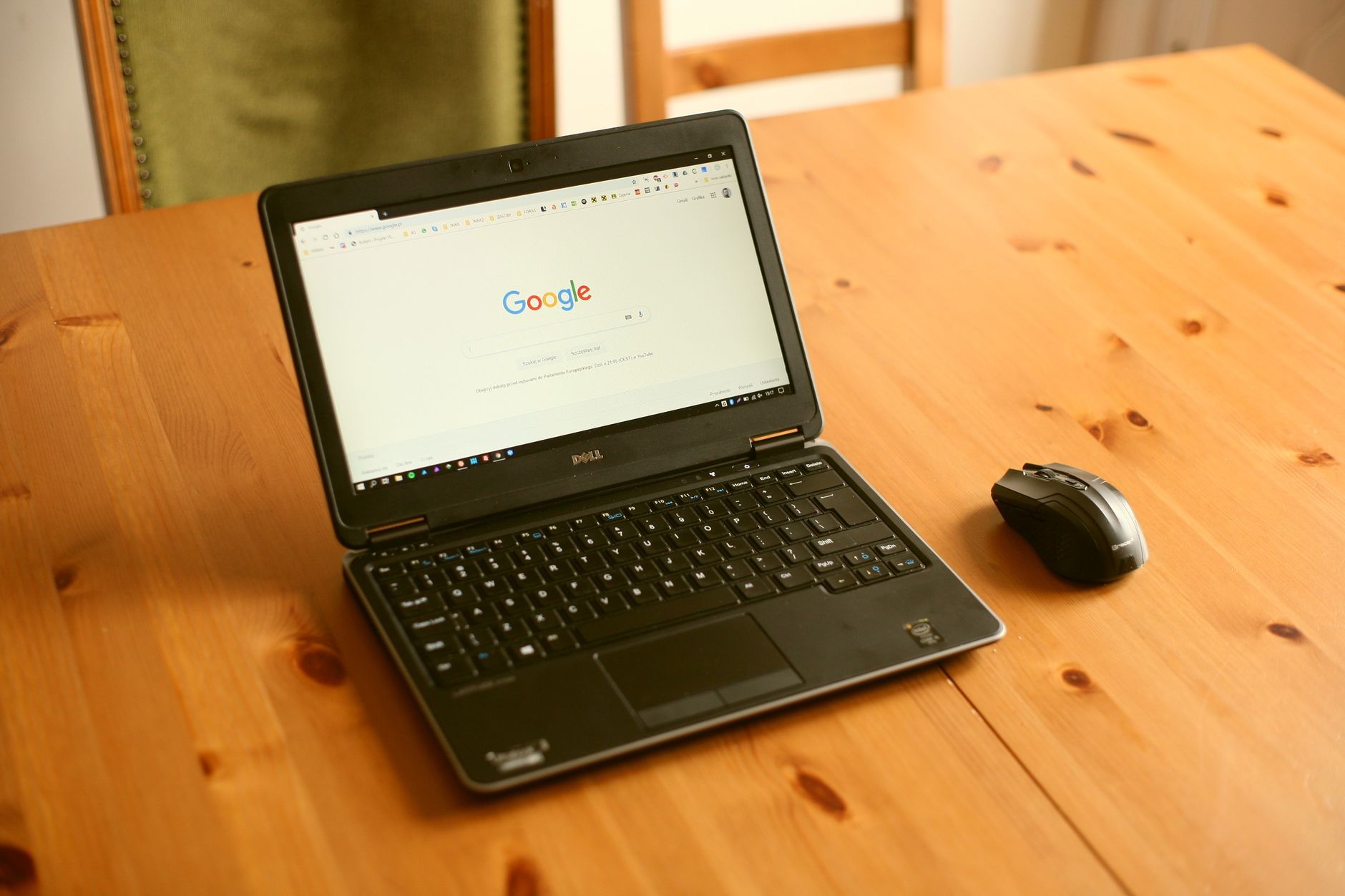
Dragging a URL onto the desktop takes about two seconds and it is the first thing most people try. The icon appears, double clicking it opens the page, and for a link that gets used twice a year that is the end of the story. The trouble starts when the same trick is applied to the three sites that get opened every morning. Those shortcuts sit under a pile of windows, they open in whatever browser happens to be the default, and they do nothing about the reason the site was hard to find in the first place. Knowing exactly what the desktop icon is, and what it is not, decides whether it is the right answer or a detour.
What actually lands on the desktop
Dragging an address out of a browser writes a small file with a .webloc extension. It contains an address and effectively nothing else. No icon of its own beyond a generic one, no browser preference, no window settings, no session.
Double clicking it hands that address to whichever browser macOS currently treats as the default, and the page opens as an ordinary tab in whatever window is frontmost. That last detail is the one that catches people. The page does not get a window of its own. It joins the same pile of tabs that made the site hard to find, just from a different starting point.
There is a job this does well. A quarterly report, a form that a new hire has to fill in once, a set of reference pages that belong next to the documents in a project folder. Webloc files can be renamed freely, moved into folders, duplicated, and emailed. They are portable in a way bookmarks are not, because they do not live inside one browser's profile.
They fail at the job people usually have in mind. Nothing about a webloc file separates the site from the browser. There is no separate icon in the Dock while the page is open, no separate entry in Command Tab, no notification settings of its own, and no protection against the window wandering off to another site.
Four ways to make one, and what each is for
From the address bar. Click and hold the small icon at the left of the address field, or select the address text, then drag it onto the desktop. This works in Safari, Chrome, Firefox, and Edge. The file takes the page title as its name, which is often long, so renaming it immediately is worth the extra second.
From a link on a page. Dragging a link out of a page onto the desktop produces the same kind of file, pointed at the link target rather than the page currently open. Useful for a deep link that is awkward to reach by navigation.
From the bookmarks list. Dragging an existing bookmark out of the bookmarks bar or the bookmark manager writes the same file. This is the fastest route when the address is already saved somewhere.
From the Shortcuts app. A shortcut containing a single Open URLs action can be given a keyboard trigger in the shortcut details pane, then run from anywhere without touching the desktop at all. This is the route worth trying for anyone who never actually looks at the desktop.
Chrome also has a menu item called Create shortcut, under the three dot menu in Cast, save, and share. In current versions it produces a launcher that opens the page as a normal tab, because the old "Open as window" checkbox has been removed from that dialog. The neighbouring item, Install page as app, is the one that creates a real app window. Anyone following an older tutorial usually ends up in the wrong dialog and concludes the feature is gone.
The default browser problem
A webloc file carries an address and no browser preference. That is fine on a Mac with one browser and one profile. It stops being fine the moment a work login lives in one Chrome profile and a personal login lives in another, because the shortcut has no way to say which one it meant.
The same applies to handing the file to a colleague. Their default browser may be different, so the page may open signed into a different account, or signed out entirely. For a link that has to land in a specific browser or a specific profile, a webloc file is the wrong container. An alias to an installed app, or an app built from the site, is the container that carries that information.
Four containers, side by side
| Desktop webloc | Bookmark | Web app in the Dock | Alias to an app | |
|---|---|---|---|---|
| How it is made | Drag the URL to the desktop | Command D in the browser | Safari Add to Dock, Chrome Install page as app, or a builder | Option and Command drag an app out of a folder |
| Where the page opens | Default browser, frontmost window | The browser holding the bookmark | Its own window | Its own window |
| Own Dock icon while running | No | No | Yes | Follows the app |
| Own Command Tab entry | No | No | Yes | Follows the app |
| Own notification settings | No | No | Yes | Follows the app |
| Separate login from the browser | No | No | Yes, on the Safari route | Follows the app |
| Custom icon | Yes, through Get Info | No | Yes | Follows the app |
| Survives the target moving | Breaks if the URL changes | Breaks if the URL changes | Breaks if the URL changes | Yes, macOS tracks the file |
Read that table by column and the decision makes itself. The first two columns are ways of storing an address. The last two are ways of giving a site a place in the operating system.
Giving the shortcut an icon worth looking at
A desktop full of identical generic icons defeats the point of putting anything there. macOS allows any file, webloc included, to carry a custom icon.
Open the site's logo in Preview, select all with Command A, copy with Command C. Select the shortcut in Finder, choose File then Get Info from the menu bar, click the small icon at the top left of that window so it gets a highlight, then press Command V. The icon changes immediately. To undo it later, select the same small icon and press Delete.
Two details save time. The source image should be square and at least 512 pixels on a side, otherwise the result looks soft at large icon sizes. And a screenshot of a favicon taken from a browser tab is almost always too small to survive this, so the logo is better pulled from the site's own press or brand page.
The desktop is a worse home than it looks
The desktop is the one surface on a Mac that is covered by every open window. Reaching an icon there means minimising everything, pressing the show desktop key, or turning on the option in System Settings under Desktop and Dock that reveals the desktop when the wallpaper is clicked. Each of those is more work than clicking a Dock icon that is always visible.
Spotlight is the honest alternative for anything stored on the desktop. Command Space, a few letters, Return. That works for shortcuts, apps, and documents alike, and it does not care what is covering the screen.
So the desktop makes sense for things that are looked at rarely and found by eye, and it makes very little sense for the three sites opened every morning. Those belong in the Dock, and putting them in the Dock as a bookmark is not possible, which is why the question usually turns into the next section.
Sorting sites into the right container
A short sort keeps this from turning into forty desktop icons. Three questions decide it.
How often is it opened? Anything opened less than once a week is fine as a shortcut, and fine on the desktop, because the cost of finding it is paid rarely. Anything opened daily should not be reached through a surface that windows cover.
Does it hold a session that matters? A site that is signed in, and especially one signed in as a specific account among several, argues for an app with its own storage. A public reference page with no login has nothing to isolate, so a shortcut is enough.
Does it need to interrupt? A site that sends notifications worth acting on needs a line of its own in System Settings, and only an app gets one. A site whose notifications get muted anyway does not.
The result on most Macs is a small number of apps and a larger number of shortcuts, with the shortcuts filed into a folder rather than spread across the wallpaper. A folder named after the project, holding the six pages that project needs, is faster to work with than six loose icons, because it survives the next round of desktop tidying and it can be moved to an external drive or a shared folder intact.
One more habit is worth adopting. Rename each shortcut to the words that would be typed to find it, not the page title the browser supplied. Spotlight searches the file name, so a file called "Invoice portal" is reachable in three keystrokes while one called "Dashboard | Accounts | v2" is not.
When a shortcut is not enough
The point where a shortcut stops being the right tool is easy to name. It arrives when any of these are needed: a window that cannot navigate away, a place in Command Tab, notification settings for that one site, or a second login to a service the browser is already signed into.
Since macOS Sonoma 14, Safari can save any page as a web app. Open the site, choose File then Add to Dock from the menu bar, name it, and confirm. Apple's support page is explicit about what the result is:
A web app functions independently of Safari. It shares no browsing history, cookies, website data, or settings with Safari. In this way, it keeps your browsing separate. Source: support.apple.com
The first launch therefore shows a signed out page, which reads like a fault for about a minute and then turns into the reason to use the route. Two web apps built from the same service hold two separate sessions. The app is saved to the Applications folder inside the home folder, and an Option and Command drag from there puts an alias on the desktop without moving the original.
Chrome's Install page as app takes the opposite approach. The app runs inside the profile that created it, so it is signed in on first launch and it keeps the extensions from that profile. It cannot give a site a session separate from the browser, and deleting or renaming that profile breaks the app.
A dedicated site to app tool sits between the two. It produces an ordinary application bundle with its own icon and its own storage, which is what makes per app icons and multiple accounts of the same service workable at the same time. The trade-offs of that route, including which sites are covered out of the box, are set out on the Supported services page, and the step by step version of the process is on the Guide.
What to change first
Take the single site that gets opened first every morning and give it a real window rather than another desktop icon, then leave the rest as shortcuts. One week is enough to tell whether the separate Dock entry and the separate login actually stop the tab hunting. Kagemusha is one route to that first window, and the Safari route costs nothing to try before it.
Frequently asked questions
Why does my desktop shortcut open in the wrong browser?
A .webloc file stores an address and no browser preference, so macOS hands it to whichever browser is set as the default. Changing that is done in System Settings under Desktop and Dock, in the Default web browser row. If different sites need different browsers, a shortcut cannot express that and an installed app can.
Can a desktop shortcut open the page in its own window instead of a tab?
Not on its own. A shortcut only passes an address to the browser, and the browser decides where the page lands. A window without tabs or an address bar requires an actual app, built through Safari's Add to Dock, Chrome's Install page as app, or a dedicated builder.
Will the shortcut still work after the site changes its address?
No. The file holds a fixed address, so a moved page either redirects or fails to load. Sites that redirect old addresses hide the problem for a while. The fix is to drag a new shortcut from the working page and delete the old one, which takes less time than editing the file.
Is it possible to put a web shortcut in the Dock instead of the desktop?
A webloc file can be dropped into the right hand section of the Dock, next to the Trash, but not into the app section on the left. It behaves like a document there rather than an app, so it still opens a tab in the default browser. For an icon that sits with the apps, the site has to be turned into an app first.
Do desktop shortcuts slow down a Mac if there are many of them?
The files themselves are tiny and cost nothing to store. What costs something is the visual noise, since a crowded desktop makes any single icon slower to find. Grouping rarely used shortcuts into one folder, and reaching the frequent ones through Spotlight or the Dock, is faster than spreading them out.