Notion as a desktop app: what it does and where it breaks down
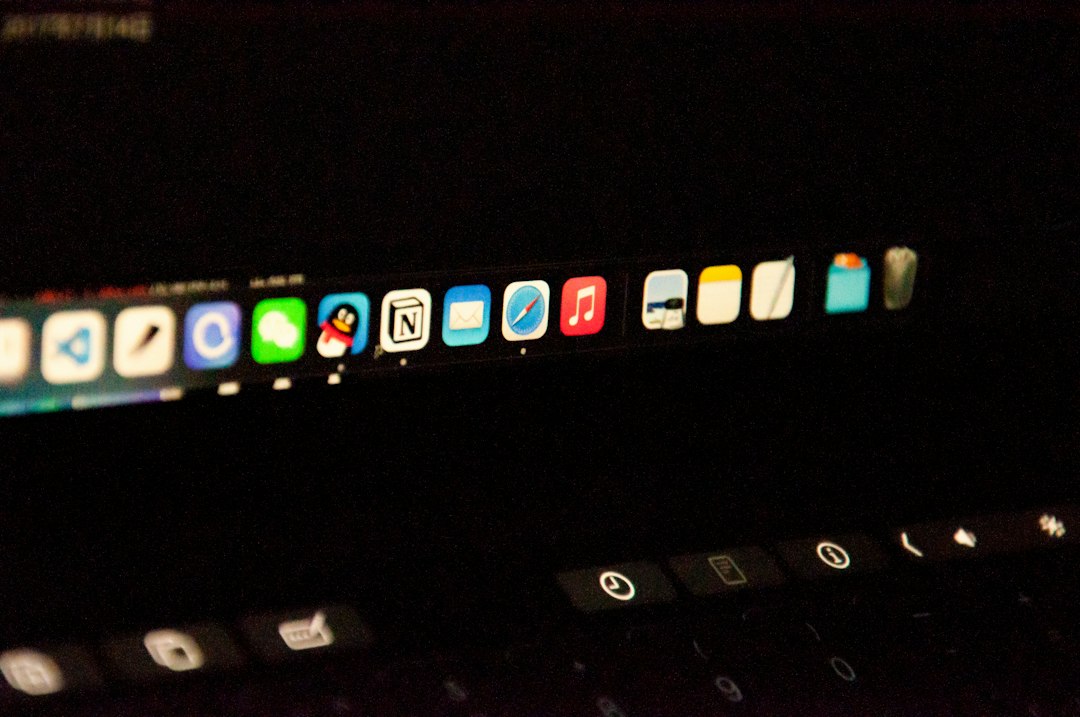
Describing what it means to run Notion as an app usually stops at the visible result: an icon in the Dock and a window with no address bar. That description is accurate and not useful, because two setups can produce an identical icon while behaving completely differently the first time a file gets attached or a login expires.
This article fixes the mechanism first, then walks the specific places where things stop working. The point is to be able to predict, before building anything, which of those places apply to a particular way of working.
The contents do not change, the window does
The phrase suggests a conversion. Nothing is converted. The same Notion web page renders, and only the frame around it changes.
Inside a browser tab, Notion is a tenant in someone else's application. There is an address bar above it, other sites in the tab strip beside it, and the Dock icon belongs to the browser. Running it as an app means lifting that one page out and giving it a frame of its own.
Three things change as a result. The chrome disappears, so the address bar and tab strip are gone. A dedicated Dock icon appears, so reaching the page no longer requires passing through a browser first. And the window registers as its own entry in the application switcher, which means it can be raised from the keyboard without touching anything else.
What does not change is everything inside the frame. The interface renders identically, databases behave identically, pages load at the same speed over the same connection. This matters because it sets a realistic expectation. Wrapping a page does not make it faster. It shortens the path to the page, and the path is often where the time actually goes, but nothing after arrival improves.
The dividing line is where data lives
The word app covers two structurally different things here, and the difference is storage.
The official desktop client keeps data on the machine. That is why offline appears as a row on Notion's pricing table, stating that offline is available on the desktop and mobile apps, that pages can be chosen for offline download, and that recents and favorites download automatically. A local copy exists, so a dropped connection is survivable.
A wrapped web page has no such layer. What runs inside the frame is the web version, and the web version needs the network. This is not a setting waiting to be found. It is a consequence of the architecture.
So the two kinds of app are not ranked. The official client is built for using Notion deeply. A wrapper is built for treating every site the same way. The choice turns on one question: how often does reading happen without a connection. If the honest answer is a few times a year, this difference does not decide anything.
Capability comes from the site, not from the wrapper
What a wrapped app can do depends much less on the wrapping tool than most comparisons assume. It depends on what the site itself implements. Chrome's documentation states this directly:
Some web apps include extra features, like more storage to browse content offline, notifications, file system access, and icon badges. Source: support.google.com
The operative word is some. Notifications and icon badges are not properties of the container. They exist when the site has built them. The same page adds a caution that although web apps work offline, some may not work completely without an internet connection.
This gives a cheap prediction method. A site that never sends notifications in a browser tab will not start sending them once wrapped. A site where printing and file saving work cleanly in a tab will almost certainly keep working. Opening the target page in a normal browser window and exercising it for ten minutes answers most compatibility questions before anything is installed.
Six places where things actually break
Failures cluster. These are the recurring ones.
External links. Notion pages link outward constantly. Whether a click opens inside the frame or hands off to the default browser is a property of the tool. A container that keeps everything internal eventually holds an unrelated site, inside an app that was built for Notion, with no address bar available to navigate back.
Authentication popups. Signing in through a Google account opens a secondary window. How a container handles that secondary window varies, and when it is handled badly the sign in simply never completes.
File handoff. Attaching a file, or saving one that someone else attached, crosses from the web view into the filesystem. Drag and drop and the file picker dialog do not always behave the same way, so both are worth testing rather than just one.
Notifications. Two conditions must hold: the site implements them, and macOS has been granted permission for that app. Either one missing produces silence, and the two failures look identical from the outside.
Where the session is stored. An app created through a browser feature belongs to that browser profile, which means two accounts on the same service cannot stay signed in at once. Signing into one replaces the other. Some general purpose tools give each app its own storage, in which case the sessions stay separate. Chrome's uninstall flow hints at where this data sits: it offers to also delete the app's data from Chrome, and notes that doing so requires signing in again on the next visit.
Window width. Notion's layout responds to the width of the window it is given. A frame kept deliberately narrow will show the sidebar and wide tables differently than a full browser window does. Noticing this after a week means resizing and re establishing a habit.
What decides each behavior
| Behavior | Decided by | How to check in advance |
|---|---|---|
| Opens offline | App architecture | Is it the native client or a wrapper |
| Notifications arrive | Site support plus OS permission | Do they arrive in a browser tab today |
| Where external links open | Tool setting | Look for the setting before installing |
| Auth popup completes | Tool implementation | Sign in once and watch |
| Two accounts at once | Storage isolation | Only testable after building |
| Layout at narrow width | Site design | Shrink a browser window |
Five of the six can be answered without building anything. The one exception is account isolation, because it depends on how a particular tool partitions storage, and no amount of reading resolves it.
Reading the table from the left column is also instructive. Only two rows are properties of the wrapping tool at all. Two belong to the site, one belongs to the operating system, and one belongs to the architecture of the app itself. That distribution explains why comparisons between tools often fail to predict real outcomes: most of what determines the experience was decided by the site being wrapped, long before any tool entered the picture.
The update model is different on each side
One behavior that rarely appears in comparisons is how the app changes over time, which turns out to matter after the first few months.
A native client updates itself. Notion ships new builds and the installed application picks them up, so features arrive without intervention. A wrapped page updates the instant the site deploys, because there is no local copy to refresh. In that narrow sense a wrapper is always current, and it can never be pinned to an older version if a redesign turns out to be unwelcome.
The container itself is a separate track. Chrome notifies when a web app wants to change its displayed name or icon, offering the choice to update, ignore, or uninstall. That prompt exists for a security reason, since an icon quietly changing to resemble another app is a known pattern worth flagging. It also means the app in the Dock is not entirely static, and each one added is one more occasional decision.
None of this is a problem at small scale. It becomes one at the point where a Dock holds ten wrapped sites built through three different methods, each with its own update behavior, its own removal path, and its own answer to where the login is stored.
How much of an app it is, from the system's side
The other axis is whether macOS treats the thing as an application in its own right, which affects daily use more than appearance does.
A real application bundle can be kept in the Dock, appears in the application switcher, and can be summoned by typing its name into Spotlight. Window management happens per app. That determines whether a target screen is reachable purely from the keyboard.
Browser created apps generally remain the browser's property. Chrome's documentation describes uninstalling one by opening it and choosing uninstall, and notes that they can also be managed at chrome://apps. The browser owns the lifecycle. Switching or deleting a browser profile affects everything created under it.
At three sites this distinction is invisible. At ten it is not, because remembering which icon belongs to which browser profile becomes its own small tax. The argument for standalone bundles is administrative rather than performance related, which is easy to miss when the pitch is usually about speed. The Features page lays out where that boundary sits.
Where this fits and where it does not
It fits when the destination is fixed and visited daily. A particular workspace, a particular database view, a published runbook. A stable URL is the requirement, because the app is permanently pointed at whatever address it was built with.
It does not fit when offline reading is genuinely required, which is structural, or when the work involves ranging widely across a workspace, which is where the native client's own navigation model earns its place.
It also does not fit a workspace still being reorganized. Pages get restructured, URLs move, and an app built during that period points at a dead address within weeks. Waiting until the morning routine has stabilized avoids rebuilding the same icon three times.
A useful test for readiness is whether the same screen has been opened first thing every morning for a month. Habits that old have stable addresses. Anything newer is still moving, and pinning a moving target to the Dock creates maintenance rather than removing it.
The hardest case is wanting the same treatment for everything else. Notion ships a native client. An internal admin console, a vendor portal, or a staging dashboard almost never does. When most of the daily list has no official app, one consistent method reduces the number of different behaviors to keep track of. The Supported services list is worth comparing against an actual list of daily tabs.
What to change first
Pick the single Notion screen with a fixed URL that gets opened most often, and give that one a dedicated window for two weeks. Every failure mode above that is relevant will surface in that period, and none of the ones that are not relevant will. If the result holds, the same approach through a tool like Kagemusha extends to the rest of the list.
Frequently asked questions
Does running Notion as an app make it faster?
No. The contents are the same web version loading over the same connection, so rendering speed is unchanged. What gets shorter is the path before that: raising a browser and locating the right tab. For someone opening Notion twenty times a day that adds up, but for a few times a week the difference is not noticeable.
Will notifications work in a wrapped app?
Only if the site implements notifications and macOS has granted permission to that app. Chrome's documentation describes notifications and icon badges as extra features present in some web apps, not all of them. A site that sends nothing in a browser tab today will send nothing once wrapped, so testing in a tab first is the reliable check.
What is the decisive difference from the official desktop client?
Local storage. The official client keeps data on the machine, which is what makes offline reading possible. A wrapped web page has no such layer, so it stops rendering when the connection drops. This is architectural rather than configurable, and no setting in any wrapping tool changes it.
What should be tested before wrapping a page?
Open the target page in an ordinary browser window and exercise it: notifications, attaching and saving files, printing, clicking an external link, and shrinking the window to the intended size. Anything that fails there will fail after wrapping too. The only thing this does not reveal is whether two accounts can stay signed in simultaneously, which depends on how the tool isolates storage.