YouTube Music app on Mac: the four containers that exist
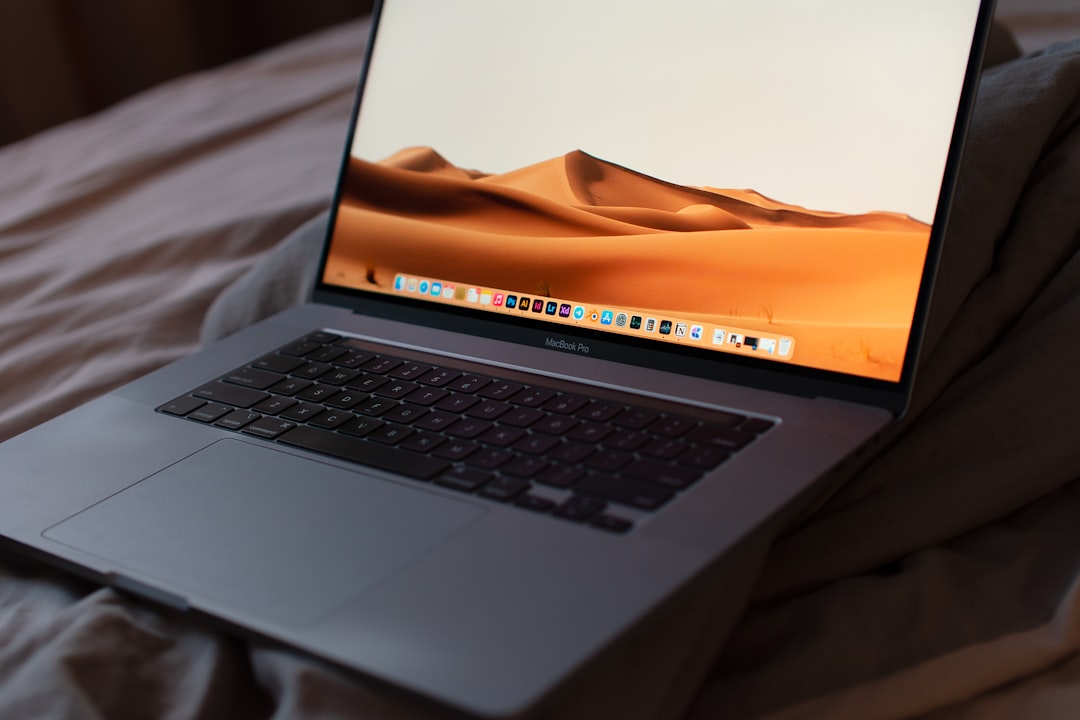
Music is playing from a tab somewhere. Finding it means hunting through three windows, the play and pause keys on the keyboard sometimes control it and sometimes control a video in another tab, and closing the wrong window silences the whole afternoon. A search for a youtube music app mac usually ends in the same discovery: Google publishes mobile apps, and on a Mac the product is the web player. The real question is which container to put that web player in, and the four available options behave very differently.
What is actually on offer
The starting point is worth being precise about, because it decides everything downstream. On macOS, YouTube Music is a website. The playback engine, the library, the queue, and the keyboard handling all live in the page.
That page is built to be installed. It serves a web app manifest, and the values in it are informative. The application name is YouTube Music, the short name is YT Music, the background color is black, the start URL carries a source of pwa so Google can tell installed launches apart from browser tabs, and the icon set runs from 48 pixels up to 512 including a maskable variant.
The display mode declared in that manifest is minimal-ui, not standalone. That single value explains a result people find confusing: install it through Chrome and a slim navigation strip stays at the top of the window rather than the window being completely bare. It is the site asking for that, not the installer failing.
The presence of a proper icon set matters too. An installed YouTube Music window gets Google's own artwork rather than a scaled up favicon, which is not true of every site that gets turned into an app.
Container one: an installed web app in Chrome
Chrome Help documents the route as More, then Cast, save, and share, then Install page as app. On a site with a manifest as complete as this one, that is the whole procedure. The name, the icon, and the start URL are filled in from the manifest, and the result appears in the Applications folder and at chrome://apps.
What this buys is a real bundle. Cmd+Tab reaches it, the Dock keeps it, and Mission Control treats it as its own window rather than one tab among thirty.
What it does not buy is a separate identity. The installed app runs inside the Chrome profile that created it, so it shares cookies and login with the browser. Signing out of Google in the browser signs out of the music. If the household uses two accounts and the second one holds the playlists, that is a Chrome profile to create and switch by hand.
Extensions are inherited from the same profile, which for a music player is either the main attraction or a distraction, depending on what is installed there.
Container two: Safari's Add to Dock
Safari's version is File, then Add to Dock, available from macOS Sonoma 14 onward. The behavior differs in one way that matters a great deal for a music service.
A web app functions independently of Safari. It shares no browsing history, cookies, website data, or settings with Safari. Source: support.apple.com
That isolation is the reason to choose this route. The music app holds its own Google session, so the account signed in there is unaffected by whatever happens in the browser. Two web apps built from the same URL keep two separate sessions, which is the simplest free answer to the two account problem.
The trade is the extension model. Safari web apps run Safari extensions, toggled per app from the Extensions tab in the app's settings. Anything installed from the Chrome Web Store does not come along.
Safari also handles system integration well here. Notifications answered inside the web app register the app in System Settings under its own name, and the Dock icon can carry a badge.
Container three: the community desktop client
There is a well known open source desktop client for YouTube Music, MIT licensed, with more than 33,000 stars on GitHub. Anyone returning to it after a while should know that it has been renamed: the project formerly published as th-ch/youtube-music is now pear-devs/pear-desktop, released as Pear Desktop. The GitHub redirect still works, so old bookmarks land in the right place, but the app name in the release files has changed. Version 3.12.0 was published in June 2026, and installation on macOS is documented through a Homebrew cask.
The project states its position plainly, which is worth reading before installing anything that holds a Google login.
This project, and its contributors, are not affiliated with, authorized by, endorsed by, or in any way officially connected with Google LLC, YouTube, or any of their subsidiaries or affiliates. Source: github.com
The README also documents a step that trips people up: a manual download that reports the app is damaged and cannot be opened is fixed by clearing extended attributes with the xattr command, which is the usual symptom of a quarantine flag on an unsigned build rather than a broken file.
What it offers over a plain container is features the web player does not have, since it is a full client with its own plugin system. What it costs is a dependency on volunteers and a login living inside an unofficial application.
Container four: an app built on the browser already installed
The fourth option keeps the Chromium engine and the extensions but drops the shared profile. Tools of this kind reference the installed browser rather than bundling a second copy of Chromium, assign each app its own browser profile, and let extensions be enabled per app.
For a music service that combination lands well. The music app holds its own Google session, so it does not follow the browser in and out of accounts. Playback keeps running when the browser is quit. The Dock icon is a real icon with the standard rounded square mask. The supported services list covers 318 services with the URL, the official icon, and the app name already paired, and YouTube Music is one of them, so there is nothing to configure by hand.
Seven Chromium engines are supported, including Chrome, Brave, Edge, and Vivaldi, which matters here for a practical reason: whichever engine already has the codecs and the extensions is the one the music app can use.
The four side by side
| Container | Own Google session | Chrome extensions | Runs with the browser closed | Comes from Google |
|---|---|---|---|---|
| Chrome installed web app | No, shares the profile | Yes, from that profile | Yes | The page does |
| Safari Add to Dock | Yes | No, Safari extensions only | Yes | The page does |
| Pear Desktop | Yes | Its own plugin system | Yes | No, community built |
| Browser based site to app tool | Yes, a profile per app | Yes, per app | Yes | The page does |
None of the rows changes what is playing. Every one of them is the same web player with a different door.
The playback details that decide it
Three things go wrong with music in a browser tab, and they are worth checking against whichever container is chosen.
The first is the media keys. When several tabs can play audio, the play and pause keys on the keyboard and the Now Playing control in Control Center go to whichever source macOS considers active, which is not always the music. Moving the player into its own application makes that unambiguous, since it is a separate process with its own media session.
The second is the accidental close. A pinned tab dies to Cmd+W like any other tab. An application window in the Dock does not disappear the same way, and quitting takes a deliberate Cmd+Q.
The third is memory management. Browsers discard background tabs to reclaim memory, and while audio playback usually protects a tab from that, a tab that has been paused for an hour is a candidate. A separate app is not competing with thirty other tabs for the same budget.
What the container cannot change
It is worth being clear about the limits, because a container is a window and a session, not a licence.
Whether ads play is a property of the Google account, not of the application around it. Moving the player into a bundle does not change what the account is entitled to, and a Chromium based container that inherits extensions from its profile is inheriting whatever was installed there, with the same consequences it has in the browser.
The library, the queue, the recommendations, and the playback quality are all served by the page. Every route described here is the same page. Comparing them on sound quality or on which one has better recommendations is comparing identical things.
The one genuine feature difference is the community client, and only because it is a separate application with a plugin system rather than a wrapper around the site. That is the trade being made, and it is the reason the affiliation disclaimer in its README deserves a read rather than a scroll.
Keyboard behavior differs more than expected
The web player has its own shortcuts, and how many of them survive depends on the container, because the browser gets first refusal on every keystroke.
In a normal browser tab the collisions are constant. Cmd+W closes the tab, Cmd+R reloads and loses the queue position, and Cmd+L jumps to the address bar rather than doing anything musical. Number keys and the space bar behave differently depending on whether focus sits in the search field.
An installed Chrome web app keeps browser level shortcuts such as Cmd+W and Cmd+R, so the reload risk stays. What changes is the blast radius: reloading loses the position in one window instead of taking a browser window full of other work with it.
Safari web apps present a stripped toolbar with a back button, a forward button, a Share button, and buttons for any enabled Safari extensions, and the Share menu is also the way back into Safari proper when a bookmark or a tab is needed.
Tools that build on an installed Chromium browser expose this as a setting rather than a fixed behavior. The tab bar and address bar can be shown or hidden per app, and the confirmation dialog on Cmd+Q can be turned on for the apps where quitting by accident is expensive. A music player is the clearest case for turning that confirmation on.
Pick the container by the account, not the features
Start with one question: does the music account differ from the browser's main Google account. If it does, Safari's Add to Dock or a tool that gives each app its own profile is the answer, and everything else is detail. If it does not, install it from Chrome in fifteen seconds and stop there. When the same question comes up again for a second and third site, the Kagemusha feature list is where the per app profile approach is described.
Frequently asked questions
Is there an official YouTube Music desktop app for macOS?
Google distributes YouTube Music as mobile applications and as a web player at music.youtube.com. On a Mac the supported product is that web page, which is built to be installed as a web app: it serves a manifest with the name YouTube Music, a full icon set, and a start URL that identifies installed launches.
Why does the installed app still show a bar at the top?
Because the site asks for it. The manifest declares a display mode of minimal-ui rather than standalone, so the installed window keeps a slim navigation strip. That is a property of the site, so it appears the same way in any Chromium based container.
Does the community client still work after the rename?
The project formerly at th-ch/youtube-music is now published as pear-devs/pear-desktop under the name Pear Desktop, with version 3.12.0 released in June 2026 and a documented Homebrew cask for macOS. The old GitHub URL redirects. The README states clearly that it is not affiliated with or endorsed by Google.
Can two Google accounts have separate music apps?
Yes, but not in the Chrome installed app route without extra work, since that app belongs to the Chrome profile that created it. Two Safari web apps built from the same URL keep separate sessions, and tools that assign a browser profile per app do the same thing while keeping Chrome extensions available.