What it does
An AI such as Claude Code can work inside the services you already use. No signing in again. No password prompt, no two-factor code.
A Kagemusha app is Chrome underneath. Your login lives in a profile that belongs to that one app, not to the browser as a whole. The AI attaches to that profile while it stays open, and works alongside you.
All of this can run at the same time
-
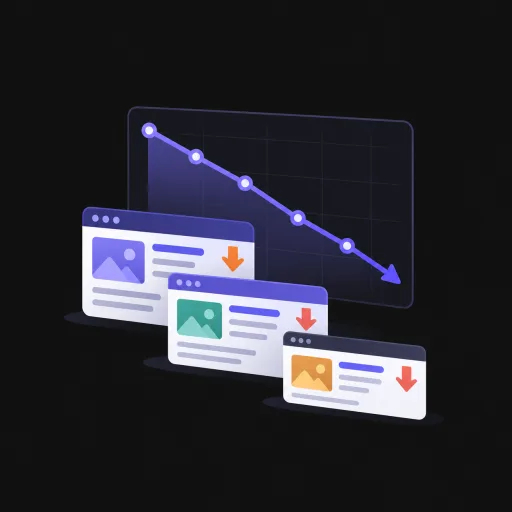
Pull last week's rankings from Search Console and list the pages that dropped
-
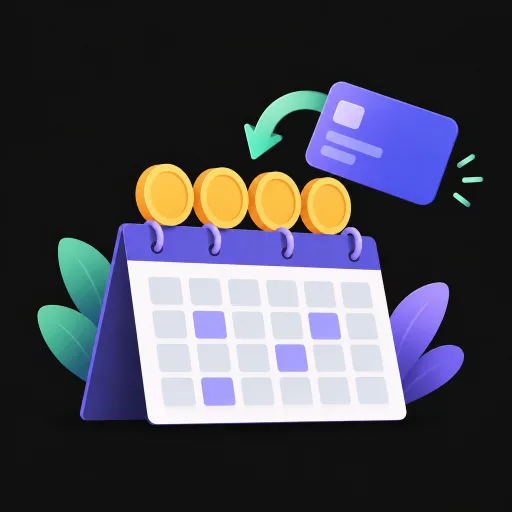
Check this month's payouts and refunds in Stripe
-

Find the posts that gained traffic in Google Analytics
-
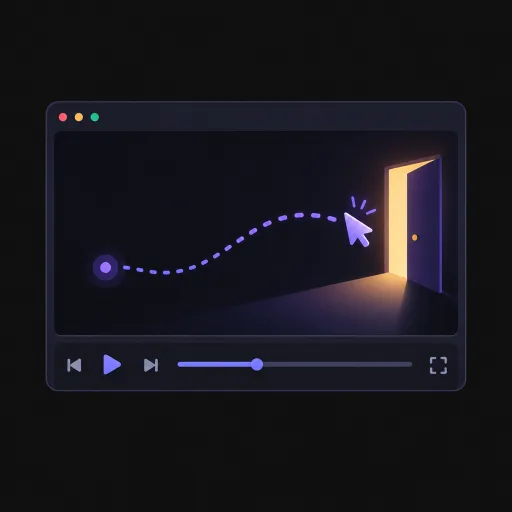
Watch session recordings in Clarity for the screens people leave
-
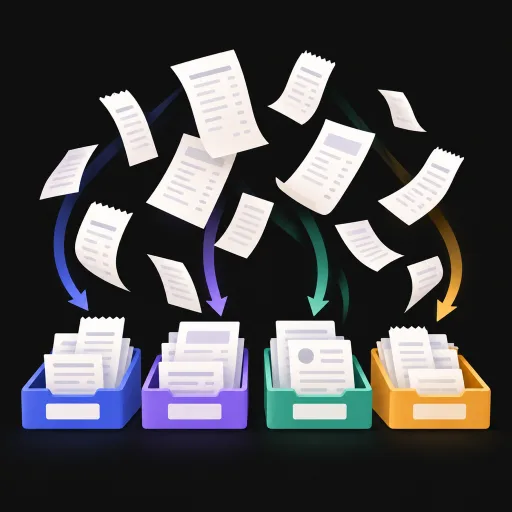
Categorize the uncategorized transactions in QuickBooks
-
Break down AdSense revenue by day
-
Open an issue on GitHub and close the stale ones
-

Pick out the deductible orders from your Amazon history
-

Draft a post on X (you decide whether it goes out)
-
Check review status in App Store Connect and Google Play Console
They are separate apps, so they run in parallel. Nothing fights over tabs, and nothing dies because the other side closed a page.
How it was done before, and where it stops
1. Watching the screen (Computer Use)
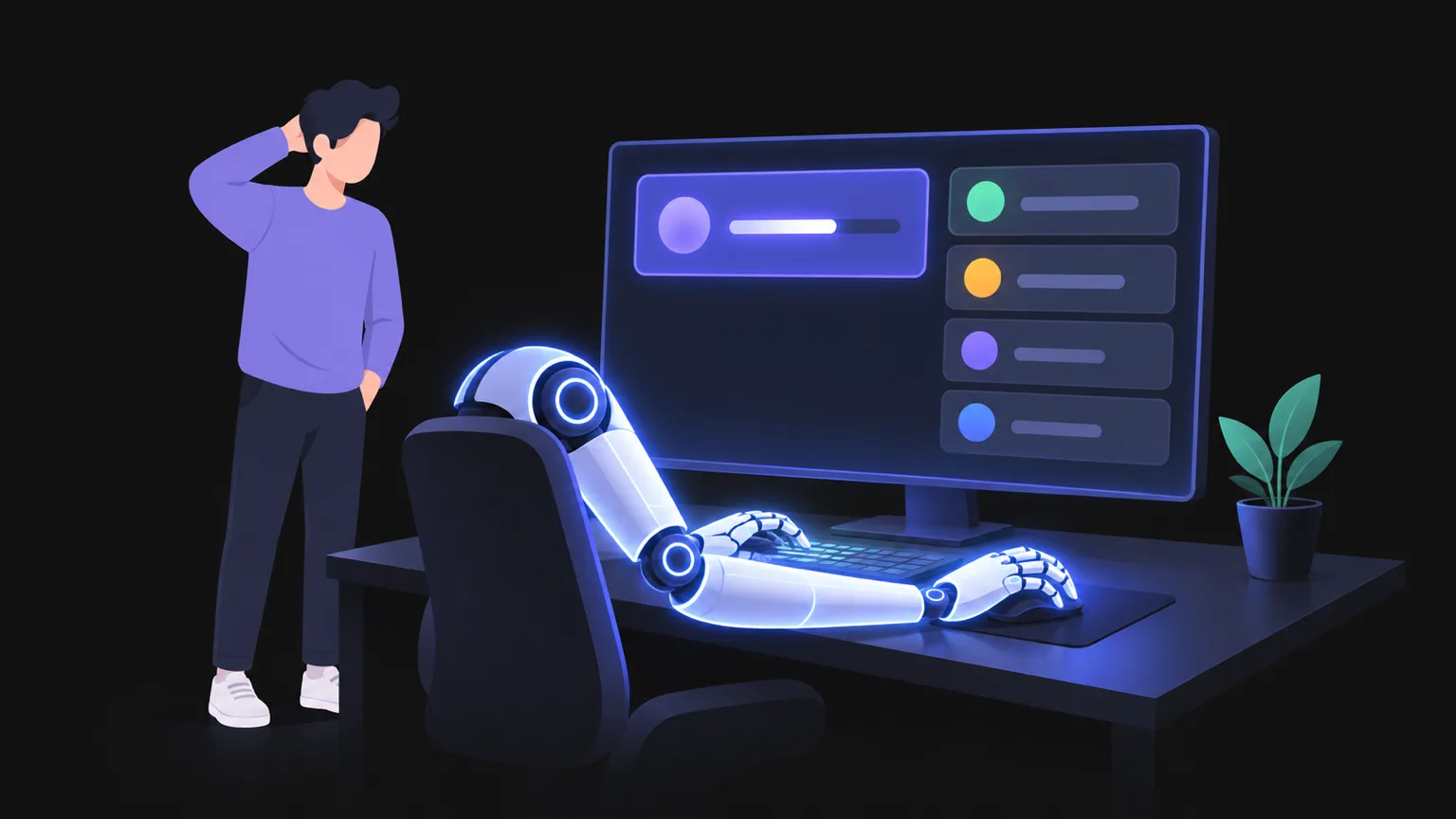
The AI takes a screenshot, picks a coordinate, clicks, and types. It follows the same steps a person would, so it can drive anything on the machine.
But what it drives is the screen you are looking at. While the AI works, your mouse and keyboard belong to it. There is only one screen, so there is no second task running beside the first. Every step means taking another picture and reading it again.
2. A browser extension
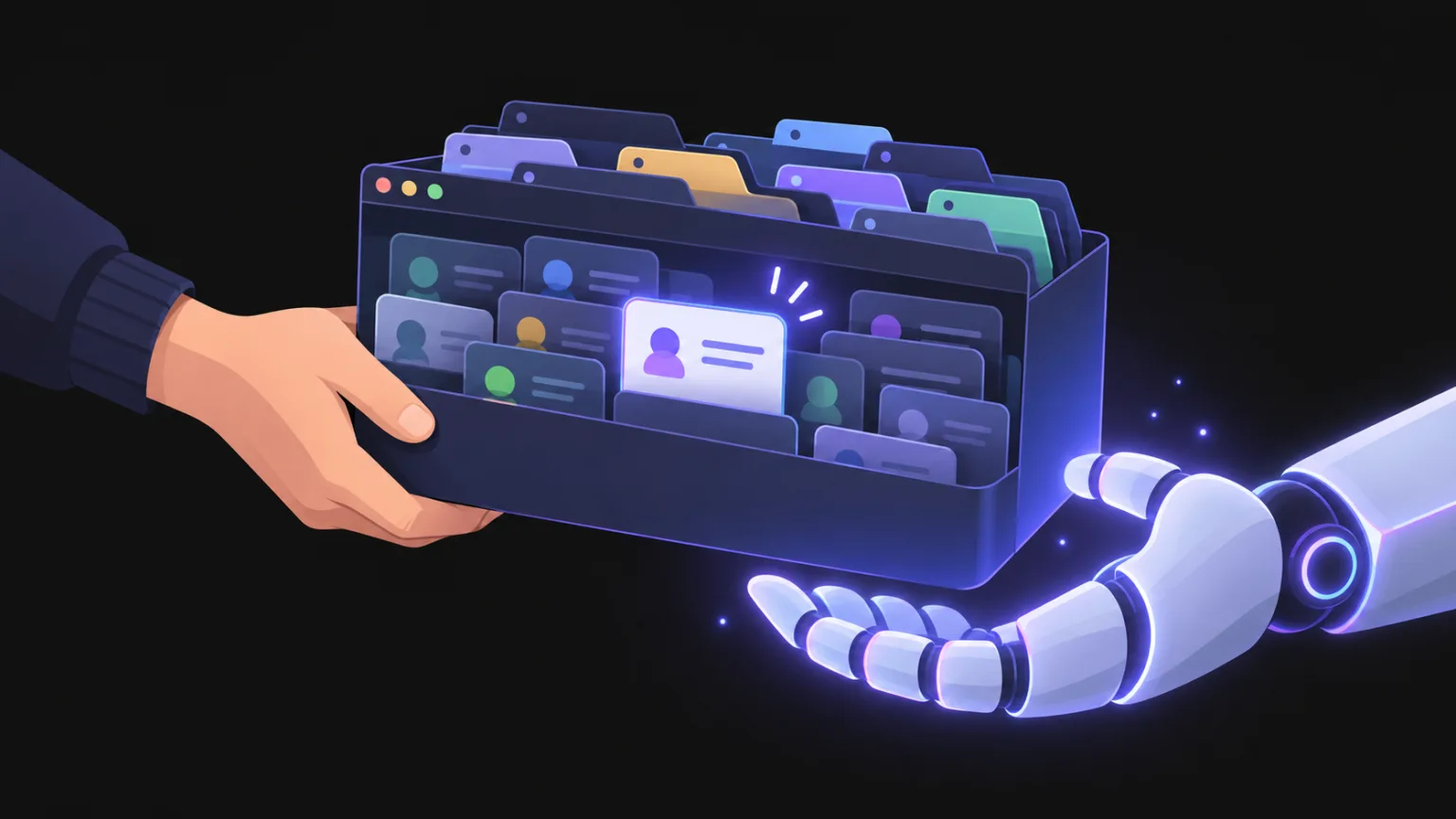
You install an extension in your everyday browser and let the AI drive it. Your sessions carry over, which is the appeal.
But what you hand over is the whole browser. Every open tab, every account, every service sits in the same container. There is no way to say "just Stripe". You also have to keep the account in the AI tool and the account in the extension lined up.
3. Relaunching Chrome in automation mode
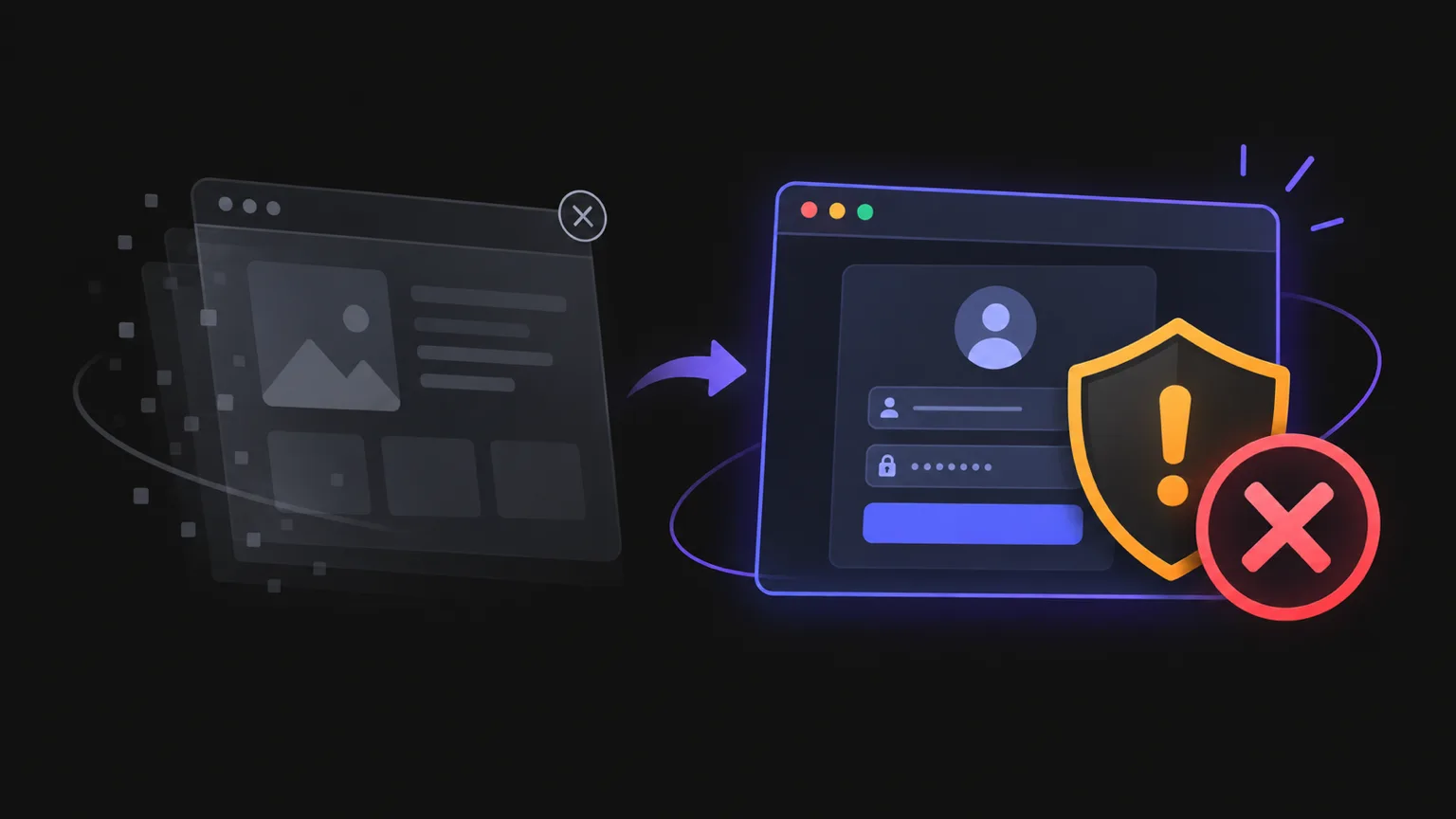
This is what most browser automation tools do: start Chrome with special flags and connect to it.
The result is a different window from the one you use. To reuse a signed-in profile you have to close the Chrome you already have open. And in that state Google may decide the browser "may not be secure" and refuse the sign-in outright.
The Kagemusha way
Kagemusha gives each service its own browser. A Search Console app, a Stripe app, a GitHub app. Separate processes, separate logins, separate entry points.
One app at a time
Switch it per app. Hand over Stripe and nothing else is within reach.
Nothing to close
It attaches to the app as it stands, even one you are in the middle of using.
Your screen stays yours
Nothing jumps to the front. Show the window or keep it out of sight, your call.
As many as you like
Run one per app, side by side. They never interfere with each other.
Whether a window appears is decided from your display setup. With an external display connected it opens on the built-in one; with no external display it runs off screen. Either way it never takes focus.
Running side by side is the real difference
Measured with three Kagemusha apps (AlternativeTo, AppSumo, GitHub) opened and driven at once.
One after another
All at once
| Task | All at once | One after another |
|---|---|---|
| Open three apps | 2.1s | (three launches) |
| Load and read a different page in each | 6.4s | 10.2s |
Speed is not the point. Not colliding is. The three have separate processes, separate logins, separate entry points. If one crashes, the other two carry on as if nothing happened.
Why an ordinary browser can't do this
Chrome runs one instance per profile. Start a second one on the same profile and it does not stand up; it folds into the first. Run the test and the second process exits immediately, leaving the first one's entry point in place.
One entry point means everyone connected shares it. Your screen, the first AI, the second AI, all reaching into the same pile of tabs. One opens a tab, the other closes it. A click lands in someone else's window. Work does not survive that.
Separate profiles fix it, but doing that by hand means creating a folder per service, managing launch flags, and remembering which entry point belongs to which service. With Kagemusha, that is already done the moment you create the app.
Comparison
| Watching the screen Computer Use |
Browser extension | Chrome in automation mode |
Kagemusha | |
|---|---|---|---|---|
| What the AI gets | Your whole screen | Your whole browser | Your whole browser | One app |
| Running in parallel | One (one screen) | One | One | One per app |
| Signed-in state | Carries over | Carries over | Needs a relaunch | Carries over |
| Your screen | Taken over | May come to the front | Comes to the front | Untouched |
| Signing in to Google | Works | Works | May be refused | Works |
| Setup on the AI side | An AI that supports it | Extension plus matching accounts | Managing launch flags | Just the port number |
How to use it
With Claude Code, Codex, agy or Grok
Open AI Integration in the Kagemusha sidebar to see the AI agents installed on this Mac. Press Install next to the one you want, and the instructions and tooling (the skill) are written to that AI's folder. From its next launch, the AI knows how to find your apps and connect to them.
When a Kagemusha update brings a newer skill, the same row shows Update.
Press Remove if you no longer need it (the files are kept as a backup, not deleted).
Python and Playwright are required (pip install playwright and playwright install chromium).
For an AI that is not in the list, press Copy instructions for other AIs on the same screen and paste that into the tool.
Wiring it yourself
From the AI's side there are three steps.
- Open the app (or use the one already open)
- Point the AI at that app
- Give it instructions as usual
The steps are in the guide that ships with Kagemusha. You name the app, and from there you just tell the AI what you want.
You are not tied to one AI. It works the same with Claude Code, Codex, agy, and Grok.
You decide the scope
Whether an app opens its entry point is set by Allow AI control. It is on by default, and you can switch it per app. An app you decide not to hand over simply cannot be reached.
- Settings, then Default options for new apps
- While creating an app, for that app only
- Per-app settings, to change it later
Turn it off and the app opens no entry point, and refuses any attempt to open one from outside.
Worth knowing
The entry point stays inside your Mac and is not reachable from the network. That said, other programs running on the same Mac can drive that app too. Turn the setting off for anything you would rather keep closed.
FAQ
Does this only work with Claude Code?
No. We have confirmed it works with Codex, agy, and Grok. For other AI agents, please contact us.
Do I have to sign in again?
No. Your login stays in the app's profile and the AI attaches to it. No password prompt, no two-factor code.
What if I am using the app at that moment?
Your tabs are left alone. The AI opens its own tab, does its work, and closes only that one. For anything you would rather it never touch, switch the setting off.
Can it sign in to Google?
Yes. A browser that can be driven from outside is sometimes judged "not secure" by Google, and Kagemusha is built so that it is not.
How many can run at once?
Memory is the only limit. Each app is one Chrome, and takes memory accordingly.